Showing posts with label Case. Show all posts

Friday, January 23, 2015


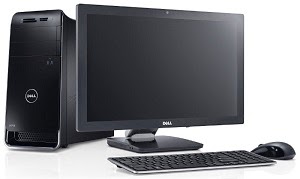
Desktop Computer Assembling is easy. It usually takes up to 30 minutes to assemble a Complete Desktop PC. In my other articles I have written about how to install various components of a Desktop PC. Today I am gonna take you through the steps of Assembling a Complete Desktop PC:


10. Install a Graphics Card (Optional).


12. Close the Case.


12. Start the Computer.

13. Install an Operating System (Windows, Linux, Mac etc.).

14. And finally its over.


Monday, January 19, 2015


Every Computer Case comes with a front panel which includes the Power Button, Reset Button, Power LED, Hard Disk Drive LED, USB Ports, Audio Ports etc. This panel needs to be connected with the Motherboard in order to make the components work. This article explains the way of connecting the front panel with the motherboard:


1. Find the Switch, LED, USB and Audio port pins on the Motherboard.


2. The connection sequences are written beside the ports in tiny letters. If you can't see them then follow the diagrams below.


3. Use the above diagram to connect the connectors of the Power Switch, Reset Switch, Power LED and HDD LED to the the pins (The Names are written on each particular connector).


4. Use the above diagram to connect the USB Port connectors.


5. Use the above diagram to connect the Audio Panel connectors.

6. Be careful about not breaking any pin while connecting.

7. Done.


Sunday, January 18, 2015


The components of a Desktop Computer are interconnected via Motherboard. The Motherboard is attached into a Case. This article will explain how to install a Motherboard into a PC Case:


1. Open the Case.

2. Break and remove the fake I/O panel shields from the metal plate behind the case.

3. Screw the standoffs in to attach them with the case.

4. Insert the Motherboard in the Case.

5. Place it on the standoffs.

6. Push the Motherboard sideways to put the I/O panel out through the holes of the metal plate.

7. Attach the Motherboard firmly with screws but don't overtight them.


9. Connect the Front Panel Power Switch, Reset Switch, Power LED, HDD LED, Audio Panel and USB Ports with the Motherboard.

10. Connect the Cooling Fan of the Case with the Motherboard and Power Supply Cable.


Friday, January 16, 2015


Power Supply supplies electricity to a PC. To add a PSU with a computer you need to:


1. Remove the PSU cover.


2. Set the PSU in the case so that the screw holes of both the things are met properly (Usually at top).


3. Attach the PSU by adding the screws to the holes.


4. Grab the fat power cable and connect it to the motherboard's big main power port.


5. Grab the small 4 pin power cable and connect it to the power port beside the processor (CPU) port.


6. The other cables will be needed for optical and storage drives.