Showing posts with label HDD. Show all posts

Wednesday, February 11, 2015


To use all the space of your 3TB HDD you will need a disk of 64 bit Windows 7 or up. The 32 bit version of operating system uses - MBR (Master Boot Record) type partition system which can partition up to 2TB. That is why the remaining 746GB stays unallocated. The 64 bit Windows uses GPT (GUID Partition Table) type partition system which can handle upto 9.4ZB space.

(Don't forget to Backup your important data first).


For GPT type partitioning:-


1. You'll need a Motherboard that supports UEFI (Unified Extensible Firmware Interface).


2. Enter Motherboard's settings (BIOS) by pressing F2/Delete key.

3. Enable UEFI Mode instead of Legacy.


4. Save and Exit Motherboard's settings (BIOS).

5. Boot 64 Bit Windows disk in UEFI Mode.


6. In the partitioning window if you have any MBR type partition delete them.


7. After deletion create new partitions and install Windows.


Friday, January 23, 2015


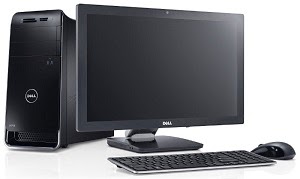
Desktop Computer Assembling is easy. It usually takes up to 30 minutes to assemble a Complete Desktop PC. In my other articles I have written about how to install various components of a Desktop PC. Today I am gonna take you through the steps of Assembling a Complete Desktop PC:


10. Install a Graphics Card (Optional).


12. Close the Case.


12. Start the Computer.

13. Install an Operating System (Windows, Linux, Mac etc.).

14. And finally its over.


Wednesday, January 21, 2015


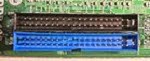
Hard Disk Drives are used to store various types of data in them. There are Internal and External Hard Disks. External Hard Disks just connect to the USB ports like Pen drives. Internal Hard Disks connect to the Motherboard. Like Optical Drives Internal Hard Disks support PATA (Parallel AT Attachment)/IDE (Integrated Drive Electronics) or SATA (Serial AT Attachment) ports. PATA/IDE technology is now ancient, so the modern day drives use SATA ports instead of PATA/IDE. Only if you have a HDD which was made before the year 2003 then you'll need to connect that drive to the big fat PATA/IDE port. This article will explain the ways of connecting a Hard Disk Drive to a Desktop PC.


Connecting an Optical Disk Drive Using PATA/IDE Port:


1. Detect the PATA/IDE port.


2. Get a PATA/IDE cable.


3. Insert the drive into the Computer Case.

4. Attach it firmly with the case with two screws.

5. Connect One end of the cable to the drive and the other end to the Motherboard.

6. Grab a Power Cable of the Power Supply.


7. Connect it with the power port of the Hard Drive.

Connecting an Optical Disk Drive Via SATA Port:

1. Insert the drive in the PC case.

2. Attach it with the case with screws.

3. Find the SATA Ports on the Motherboard.


4. Get a SATA Data Cable.


5. Connect One end of the cable to the drive and the other end to the Motherboard.

6. Get a SATA Power Cable.


7. Connect its fat end to a power cable from the power supply.

8. Connect the thin end with the drive.

9. Done.


Monday, January 19, 2015


Every Computer Case comes with a front panel which includes the Power Button, Reset Button, Power LED, Hard Disk Drive LED, USB Ports, Audio Ports etc. This panel needs to be connected with the Motherboard in order to make the components work. This article explains the way of connecting the front panel with the motherboard:


1. Find the Switch, LED, USB and Audio port pins on the Motherboard.


2. The connection sequences are written beside the ports in tiny letters. If you can't see them then follow the diagrams below.


3. Use the above diagram to connect the connectors of the Power Switch, Reset Switch, Power LED and HDD LED to the the pins (The Names are written on each particular connector).


4. Use the above diagram to connect the USB Port connectors.


5. Use the above diagram to connect the Audio Panel connectors.

6. Be careful about not breaking any pin while connecting.

7. Done.


Friday, January 2, 2015


First step of building a PC is collecting the required parts. Here is what you need to assemble a desktop computer:-


1. Case - A case is needed to set all the devices of the computer in it.

2. Power Supply Unit (PSU) - To supply power to the devices of the computer we need a Power Supply. If you buy a case it will probably have a built in PSU in it. You can work with it with a less powerful PC. But for a much powerful PC you will have to buy a PSU of greater Watt.

3. Motherboard - Motherboard is the main circuit board of a computer which connects the other devices.


4. Processor (CPU) - The Central Processing Unit works as the brain of a computer. All the computations are done by it.


5. Random Access Memory (RAM) - RAM is used to temporarily store programs which are currently running.


6. Storage Devices - For storing data for a long time we need storage devices. We can either use Hard Disk Drive (HDD) or Solid State Drive (SSD).


7. Optical Disk Drive - CD, DVD or other optical devices are read or written by the optical disk drives.


8. Keyboard - Keyboard is used for giving input by typing.


9. Mouse - Mouse is needed for giving commands by clicking.


10. Printer - For printing documents.


11. Scanner - Used for scanning documents.


12. Graphics Card (GPU) - Graphical Processing Unit is needed for high quality graphical output.


13. Operating System Disk - You'll need an OS disk to install the Operating System which will run the computer.


14. Monitor - We can see graphical representation of our work in the monitor. There are many types of monitor. Most common are: CRT, LCD and LED.


15. Speaker - This is where we hear the sounds from.


This is almost everything you'll need to assemble a complete PC. There are some optional devices like Floppy disk, Sound Card, TV Card etc.