Showing posts with label RAM. Show all posts

Friday, January 23, 2015


Desktop Computer Assembling is easy. It usually takes up to 30 minutes to assemble a Complete Desktop PC. In my other articles I have written about how to install various components of a Desktop PC. Today I am gonna take you through the steps of Assembling a Complete Desktop PC:


10. Install a Graphics Card (Optional).


12. Close the Case.


12. Start the Computer.

13. Install an Operating System (Windows, Linux, Mac etc.).

14. And finally its over.


Saturday, January 17, 2015


RAM (Random Access Memory) works as the runtime memory of a Computer. Computer won't start and give multiple sirens/beeps if it can't detect a RAM. Installing RAM is very easy. Here's how to install a RAM:

1. Push the two plastic hooks of the RAM slot on both sides to make space to insert the RAM.


2. Line up the RAM with the slot correctly so that the notch in the bottom of the RAM and the bar in the slot are aligned.

3. Insert the RAM in the slot and push it down until the two hooks from the sides come up and enter the two side notches of the Ram.

4. Push the two hooks in the notches firmly.


Friday, January 2, 2015


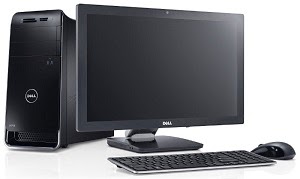
First step of building a PC is collecting the required parts. Here is what you need to assemble a desktop computer:-


1. Case - A case is needed to set all the devices of the computer in it.

2. Power Supply Unit (PSU) - To supply power to the devices of the computer we need a Power Supply. If you buy a case it will probably have a built in PSU in it. You can work with it with a less powerful PC. But for a much powerful PC you will have to buy a PSU of greater Watt.

3. Motherboard - Motherboard is the main circuit board of a computer which connects the other devices.


4. Processor (CPU) - The Central Processing Unit works as the brain of a computer. All the computations are done by it.


5. Random Access Memory (RAM) - RAM is used to temporarily store programs which are currently running.


6. Storage Devices - For storing data for a long time we need storage devices. We can either use Hard Disk Drive (HDD) or Solid State Drive (SSD).


7. Optical Disk Drive - CD, DVD or other optical devices are read or written by the optical disk drives.


8. Keyboard - Keyboard is used for giving input by typing.


9. Mouse - Mouse is needed for giving commands by clicking.


10. Printer - For printing documents.


11. Scanner - Used for scanning documents.


12. Graphics Card (GPU) - Graphical Processing Unit is needed for high quality graphical output.


13. Operating System Disk - You'll need an OS disk to install the Operating System which will run the computer.


14. Monitor - We can see graphical representation of our work in the monitor. There are many types of monitor. Most common are: CRT, LCD and LED.


15. Speaker - This is where we hear the sounds from.


This is almost everything you'll need to assemble a complete PC. There are some optional devices like Floppy disk, Sound Card, TV Card etc.


Friday, October 5, 2012


Many people do not have high memory RAM in their computers. As a result their PC runs slow. This problem can be solved by using the pendrive as RAM. To do this you need minimum 2GB of pendrive.

For Windows XP:

- Connect your pendrive with your PC.

- Right click My Computer then click Properties.

- Go to Advanced - Performance - Settings - Advanced - Change option.

- Now from "Drive (volume label)" menu select your pendrive.

- Select the "Custom size" option then in the "Initial size" and "Maximum size" box enter how much space of the pendrive you want to use as RAM. (Always remember leave 5 to 10MB space of your pendrive.)

- Restart your PC after clicking apply/ok and You're done.


For Windows 7:

- Just go to Properties - Ready boost and then click "Use this device".